XLL Python

Python for
desktop Excel

XLL Python is a free add-in that lets you call Python functions from Excel cells. It includes a local interpreter, code editor and console.

Installation guide For 64-bit Excel on Windows. No separate Python installation required.
Forecast.xlsx
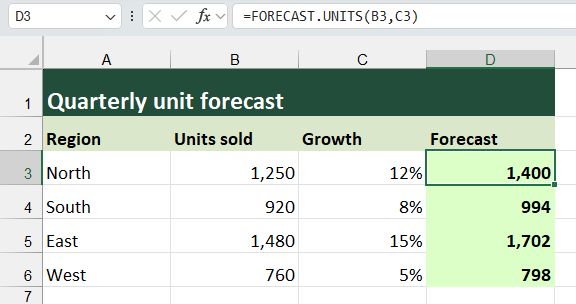
FORECAST.UNITS multiplies 1,250 by 1.12 and returns 1,400 in the selected Excel cell.
forecast.py
from xll_python import function

@function(name="FORECAST.UNITS")
def forecast(units, growth):
    return round(units * (1 + growth))

Features

Call Python from a cell

Save the example file in a folder you trust. In Python → Startup Folders, add that folder under Worksheet functions and choose Refresh.

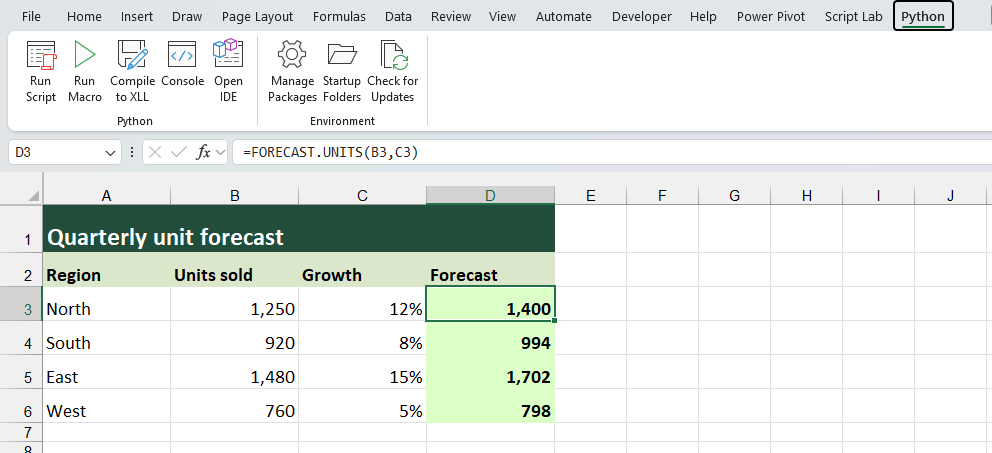
Open the starter workbook. In D3, enter =FORECAST.UNITS(B3,C3) to get 1,400. Fill the formula down to D6 for the other regions.
Download forecast.py
Excel’s Python ribbon and the FORECAST.UNITS formula returning 1,400 in cell D3.

Stream values into a cell

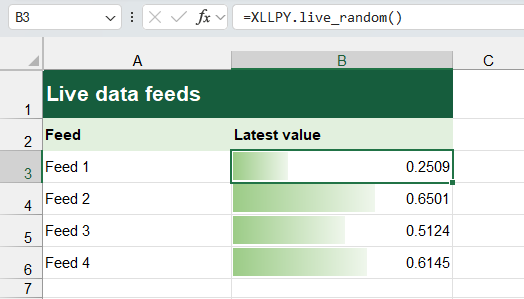
The generator runs in the background. Each yield sends a value to Excel, and the cell automatically shows the latest one.

Load the example functions in a worksheet startup folder, then enter =XLLPY.live_random(). The generator picks a random number every two seconds. Fill the formula down and each cell gets its own sequence.

from random import random
from time import sleep
from xll_python import function

@function(name="XLLPY.live_random",
          generator_instances="many")
def live_random_number():
    while True:
        yield random()
        sleep(2)
Four Excel cells running XLLPY.live_random() with their latest values and green data bars.

Run a Python macro from the ribbon

Use @macro to list a Python function under the name you choose. Save this example in a worksheet startup folder and choose Refresh in Python → Startup Folders.

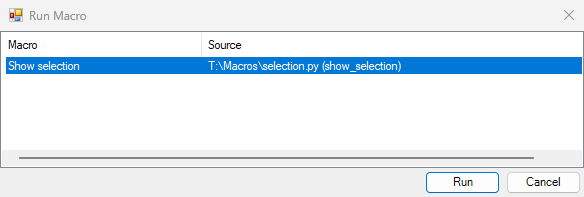
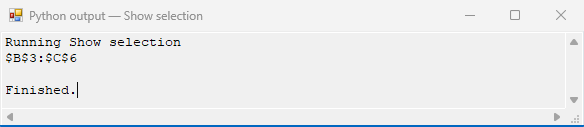
Select a range, open Python → Run Macro, choose Show selection and click Run. The macro prints the address of the selected cells.

Macro guide
from xll_python import Application, macro

@macro(name="Show selection")
def show_selection():
    print(Application.Selection.Address)
The Run Macro dialog with Show selection selected and the Run button ready. The Python output window prints $B$3:$C$6 for the selected range and reports Finished.

Edit the formula in Python

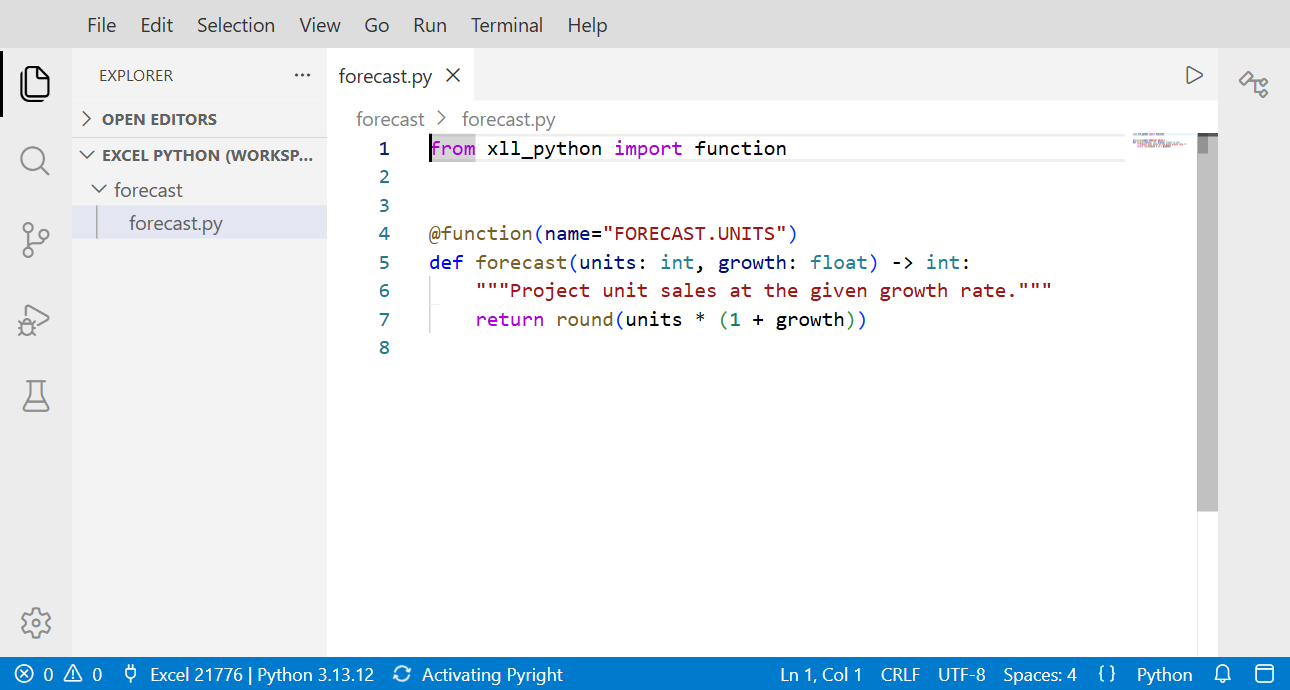
Choose Python → Open IDE and open forecast.py. Saving a file in a worksheet startup folder reloads its functions and recalculates open workbooks.

To inspect a calculation, set a breakpoint, run Excel: Debug Worksheet Functions from the command palette, then recalculate the cell.

Editor guide
The bundled Theia editor showing the Python function behind FORECAST.UNITS.

Inspect a range from the console

Open Python → Console. Import Application from xll_python to read and write cells in the current workbook.

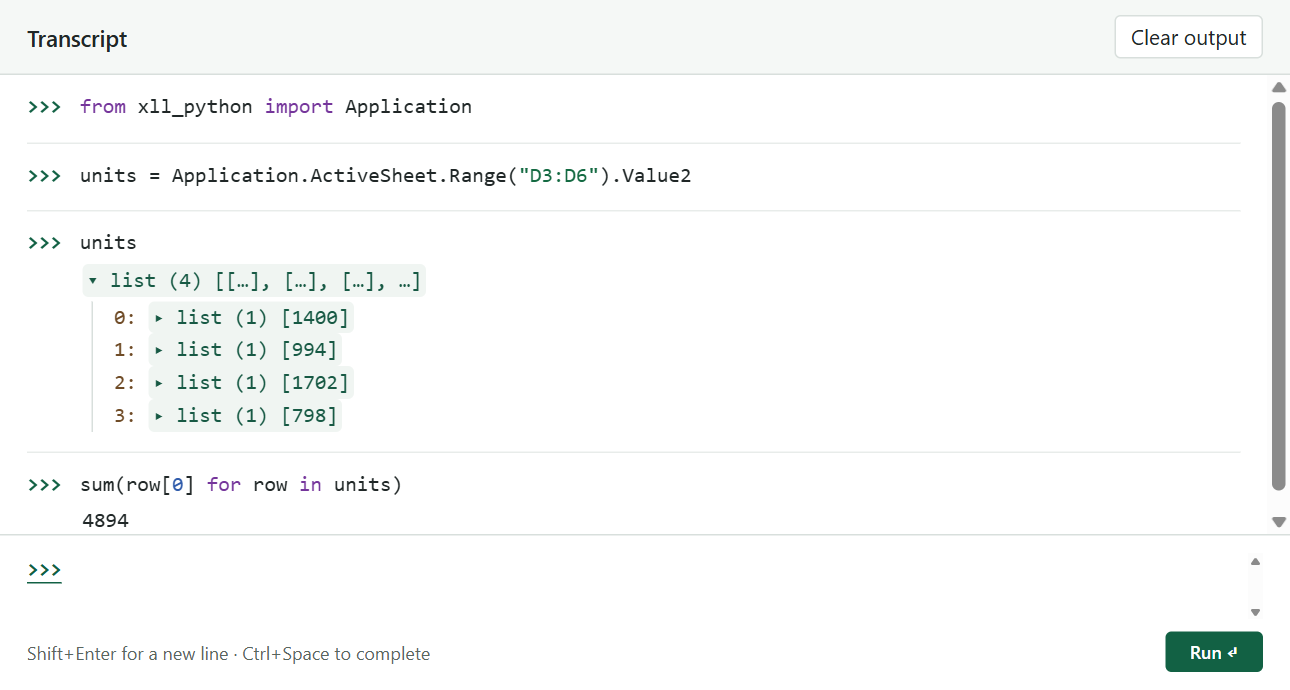
Application.ActiveSheet.Range("D3:D6").Value2 returns the four forecast values. Expand the list to inspect each row, or sum them in Python to get 4,894.

Console guide
Python console displaying the four rows returned by Excel and their sum of 4,894.

Install packages for Excel

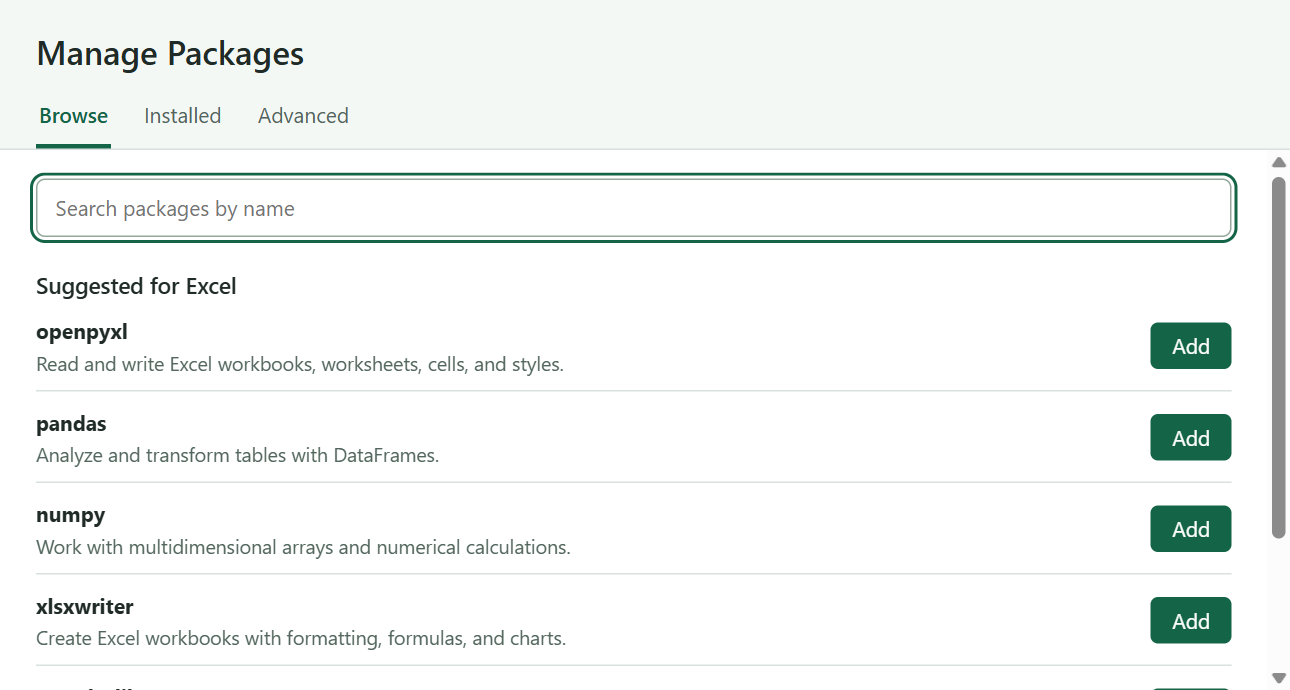
Choose Python → Manage Packages. Search PyPI by name and choose Add to install a package in the add-in’s Python environment.

The Installed tab lists versions and dependencies. Use Advanced to run a pip command or install a local wheel.

Add-in guide
Manage Packages showing Add buttons for openpyxl, pandas, numpy and xlsxwriter.

Share your own add-in

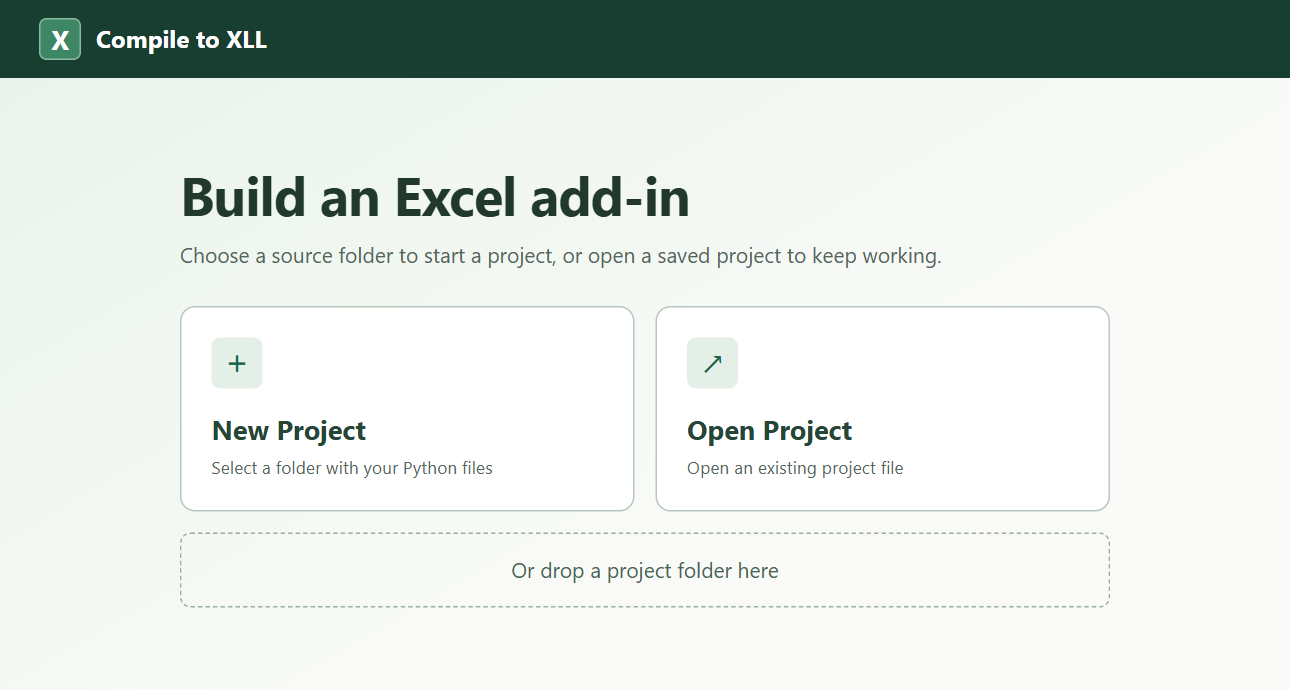
Under Python → Compile to XLL, choose New Project and select your source folder. Mark your function file as an entry module and select the packages it needs.

Choose Compile XLL to bundle the project and interpreter. Anyone using 64-bit Excel on Windows can load the file.

Compiler guide
Compile to XLL welcome screen with New Project, Open Project and the project folder drop area.

Python is included

You can use XLL Python even if you’ve never installed Python on your PC. The XLL includes CPython and its standard library.

The add-in unpacks its interpreter on first use and reuses it each time you open Excel. You can run the forecast example offline.

Try the forecast example
The blue and yellow Python logo embedded in a stack of green Excel worksheets.

Install XLL Python

One XLL includes CPython 3.13 and its standard library. You can load it and run the example offline.

Installation guide
  1. Save the XLL locally

    Keep xll-python.xll in a permanent folder. The release is unsigned. If Windows blocks the file, review its source before choosing Properties → Unblock.

  2. Load it in Excel

    In 64-bit desktop Excel for Windows, open File → Options → Add-ins. Under Manage, choose Excel Add-ins → Go → Browse. Select the XLL and leave it checked.

  3. Try the forecast example

    Follow the worksheet walkthrough to register the function. Excel extracts Python on first use.